
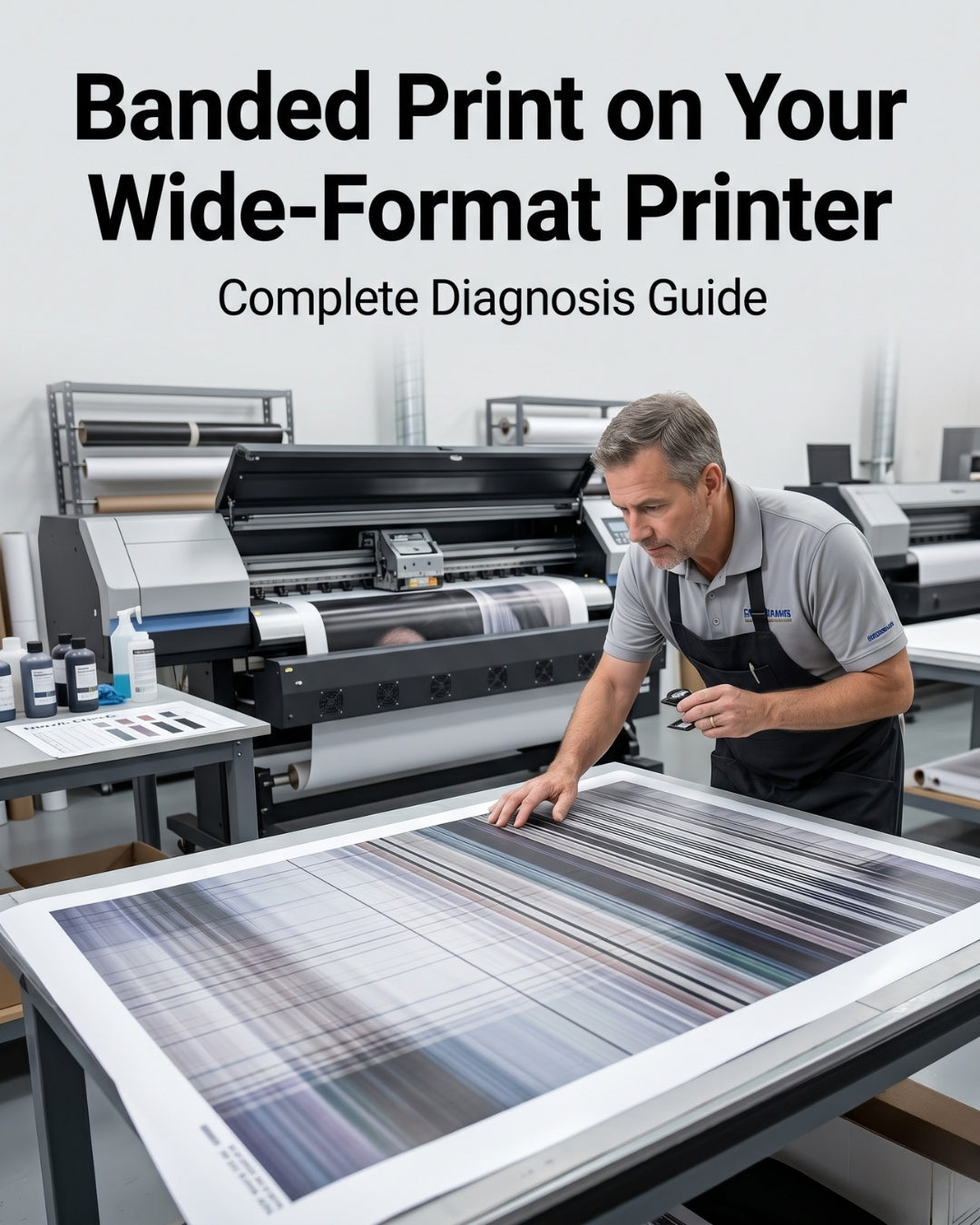
In 17 years of supplying OEM printheads to print shops across the USA and Latin America, the most common cause of banding we see is a partially blocked nozzle or a failing ink damper — both of which cost under $40 to fix. Replacing a $400–$1,000 printhead before diagnosing the actual cause is the most expensive mistake a shop can make.
This guide covers every known cause of horizontal banding on wide-format inkjet printers, how to identify which one you have, and what to do about each one — in order of likelihood.
Quick answer — what causes banding?
Banding is caused by inconsistent ink delivery to the nozzle plate. The most common causes in order of frequency: (1) partially clogged nozzles, (2) failing ink damper on the affected channel, (3) worn or dirty wiper blade, (4) degraded capping station, (5) dirty or damaged encoder strip. A failed printhead is the least likely cause — rule out everything else first.
In this guide
- What banding looks like — and what it tells you
- Step 1 — Run a nozzle check first
- Cause 1 — Clogged nozzles
- Cause 2 — Failing ink damper
- Cause 3 — Worn wiper blade
- Cause 4 — Degraded capping station
- Cause 5 — Dirty or damaged encoder strip
- Cause 6 — Incorrect print settings
- Cause 7 — Failed printhead (last resort)
- Banding diagnosis decision tree
- When to contact us before ordering parts
What banding looks like — and what it tells you
Banding appears as horizontal lines running across the full width of a print, repeating at regular intervals. The interval almost always corresponds to the width of one print pass (swath). This is the most important clue: if the lines repeat at exactly the same distance apart, the problem is happening consistently within each pass — which points to a partial blockage or ink delivery issue, not a mechanical fault.
Different banding patterns tell different stories:
| Pattern | What it suggests |
|---|---|
| Regular lines at swath-width intervals | Clogged nozzles or failing damper on affected channel |
| Light bands across entire width, all colors | Ink starvation — damper or ink supply issue |
| Random irregular lines, inconsistent spacing | Dirty or damaged encoder strip |
| Lines only in one color channel | Clog or damper fault isolated to that channel |
| Banding worse after printer sits idle overnight | Capping station not sealing — nozzles drying out |
| Banding disappears after cleaning cycle but returns | Damper failing — can't maintain consistent ink pressure |
Step 1 — Always run a nozzle check first
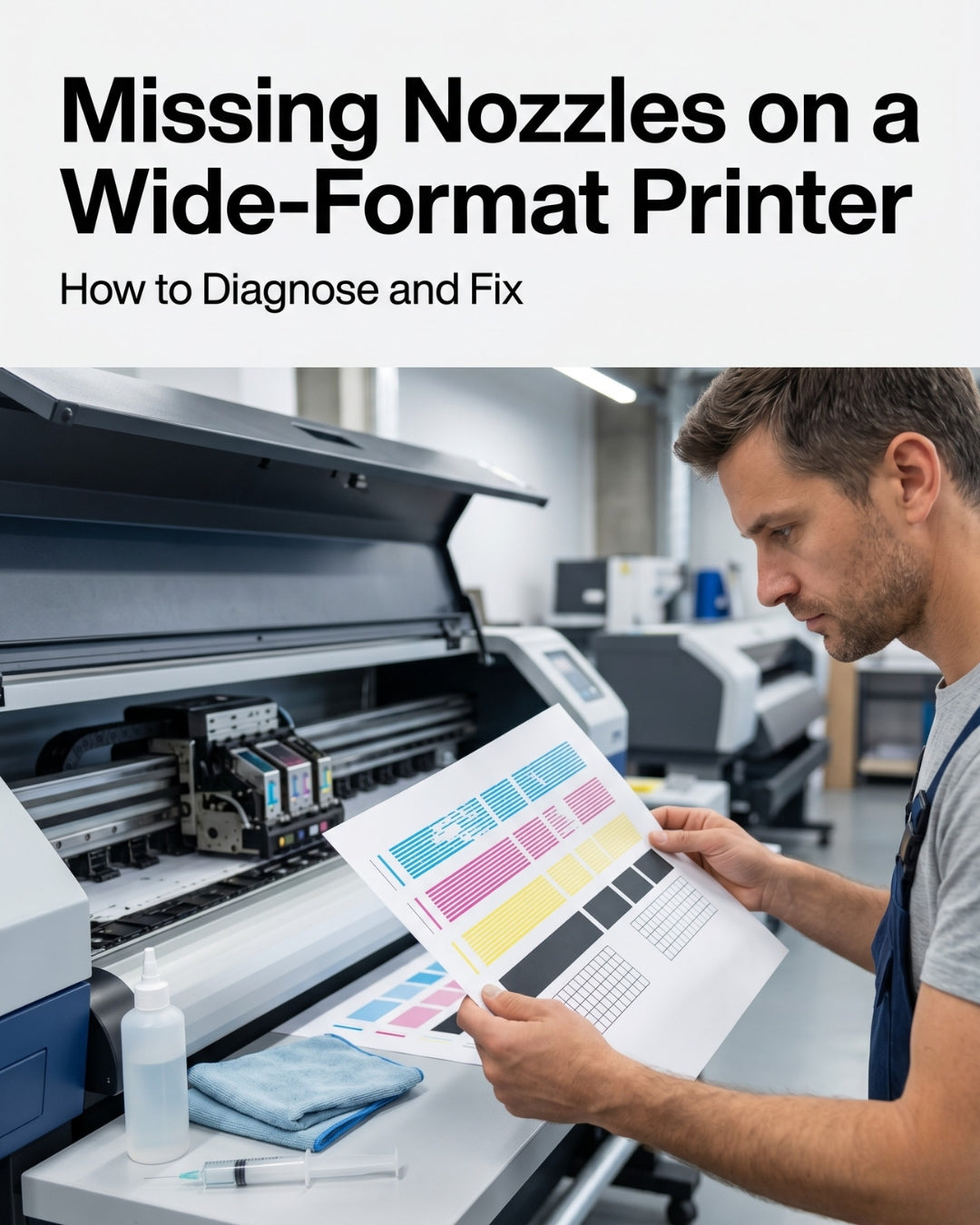
Before doing anything else, print a nozzle check pattern. This is the fastest way to narrow down the cause. Your printer's control panel has a nozzle check or test print function — consult your printer's documentation if you cannot find it.
Read the nozzle check pattern like this:
- All nozzle rows present and solid — the printhead nozzles are firing. The banding is caused by something else (damper, encoder, settings). Do not replace the head.
- One or more rows partially missing — you have a partial blockage. Run cleaning cycles and recheck before drawing any conclusions about the head's condition.
- Entire rows missing consistently — more serious blockage. Proceed with cleaning cycles. If rows remain missing after 3 cycles, escalate to damper replacement and further diagnosis.
- Missing nozzles in different positions each check — air in the ink lines, almost certainly from a failing damper.
Cause 1 — Clogged nozzles
Likelihood: Very high. This is the most common cause of banding in wide-format inkjet printers. Nozzles become partially blocked by dried ink, pigment settling, or ink residue buildup on the nozzle plate.
How to identify it:
- Nozzle check shows missing or weak rows in one or more channels
- Banding is isolated to the color of the affected channel
- Banding improves (but may not fully clear) after running a cleaning cycle
What to do:
- Run one standard cleaning cycle from your printer's maintenance menu
- Print a new nozzle check — do not print production jobs between checks
- If improved but not fully clear, run a second cleaning cycle and recheck
- Run a maximum of 3 cleaning cycles — more than 3 consecutive cycles wastes ink without helping and can stress the head
- If the pattern clears, run a short test print and check for banding in production output
- If the pattern does not improve after 3 cycles, move to Cause 2 (damper) before assuming the head has failed
Important: Cleaning cycles that temporarily fix the problem but the banding returns within hours or days almost always indicate a failing damper — not a clogged head. Replace the damper on the affected channel before running more cleaning cycles.
Cause 2 — Failing ink damper
Likelihood: High. The ink damper sits between the ink supply and the printhead, regulating ink pressure and filtering particles. When a damper degrades — through age, dried ink blocking the filter, or seal failure — it cannot maintain consistent ink pressure to the head. The result is inconsistent ink delivery, which shows up as banding.
How to identify it:
- Nozzle check shows missing nozzles in different positions each time you print one — this is the classic sign of air in the ink lines caused by a failing damper seal
- Banding clears after a cleaning cycle but returns within minutes or hours
- Light overall banding across the full width of the print, affecting the swath evenly (ink starvation pattern)
- Visible air bubbles in the damper body (on printers where dampers are visible)
What to do:
- Replace the damper on the affected color channel — or replace all dampers as a set, since they wear at similar rates
- After installing new dampers, run a fill/prime cycle to remove air from the lines
- Print a nozzle check before resuming production
Dampers are inexpensive — typically $5–$15 each depending on the printhead model. Replacing them is standard maintenance and should be done at every printhead replacement regardless.
→ Browse dampers for your printhead model
Cause 3 — Worn wiper blade
Likelihood: Medium. The wiper blade cleans the nozzle plate between passes, removing residual ink. A worn, hardened, or torn wiper blade fails to clean effectively and instead smears dried ink residue across the nozzle plate — creating partial blockages that produce banding.
How to identify it:
- Banding present even after successful cleaning cycles
- Ink smearing or streaking visible on the underside of the printhead carriage
- Nozzle check shows nozzles present but banding still appears in output
- Wiper blade visibly hardened, cracked, or has ink buildup that won't wipe off
What to do:
- Inspect the wiper blade — look for cracking, deformation, or heavy ink accumulation
- Replace the wiper blade
- After replacement, run a cleaning cycle so the new wiper performs its first clean on a fresh cycle
- Print a nozzle check and test print
→ Browse wiper blades by printhead model
Cause 4 — Degraded capping station
Likelihood: Medium. The capping station seals the nozzle plate when the printer is idle, preventing nozzles from drying out. When the cap top (the rubber seal) degrades, it cannot form an airtight seal, and nozzles begin to dry between print sessions. The result is banding that is always worst at the start of a print job and improves partway through — or banding that only appears after the printer has been idle overnight.
How to identify it:
- Banding is consistently worst in the first few centimetres of a print and improves as the job progresses
- Banding appears after the printer has been idle — especially overnight or over a weekend
- The capping station rubber seal is visibly cracked, flattened, or has ink accumulation that prevents a proper seal
- More frequent cleaning cycles required compared to when the printer was new
What to do:
- Inspect the capping station rubber seal — press lightly to check for cracking or loss of elasticity
- Clean the capping station with a lint-free swab and approved cleaning solution — sometimes heavy ink accumulation simulates a seal failure
- If the seal is degraded, replace the capping station or cap top
→ Browse capping stations by printhead model
Cause 5 — Dirty or damaged encoder strip
Likelihood: Low-medium. The encoder strip is a thin transparent strip that runs the length of the carriage rail. The printer reads it to know exactly where the printhead is positioned during each pass. If the encoder strip is dirty (ink mist accumulates on it over time) or damaged, the printer misreads the carriage position and lays down ink slightly out of position on some passes — producing irregular banding.
How to identify it:
- Banding lines are irregular in spacing — not matching the swath width precisely
- Banding appears random rather than at fixed intervals
- Nozzle check pattern is perfect but banding still appears in output
- The encoder strip has visible ink accumulation or smearing when inspected
What to do:
- Power off the printer before touching the encoder strip
- Dampen a lint-free cloth or swab with IPA (isopropyl alcohol) — not water
- Wipe the encoder strip gently along its length — do not apply pressure or bend the strip
- Allow to dry completely before powering the printer back on
- If the strip is visibly scratched or torn, it needs replacement — contact your printer manufacturer for the correct part
Cause 6 — Incorrect print settings
Likelihood: Low (but easy to check). Incorrect bidirectional alignment, wrong media profile, or incorrect pass count can all produce banding-like artifacts that have nothing to do with any hardware fault.
Settings to check:
- Bidirectional print alignment — if the printer prints in both directions and the alignment is off, each pass does not line up with the previous one, creating a banding appearance. Run your printer's bidirectional calibration routine.
- Media/substrate profile — using the wrong media profile can result in incorrect ink volumes being laid down per pass, creating uneven density that looks like banding.
- Pass count — reducing pass count (e.g. from 8-pass to 4-pass) reduces the overlap between passes and can reveal banding that higher pass counts were masking.
- RIP software settings — if banding appeared after a RIP software update or configuration change, revert the change and test.
Cause 7 — Failed printhead (last resort)
Likelihood: Low — only if all other causes have been ruled out. A genuinely failed printhead can cause banding, but it almost always presents alongside other symptoms: entire nozzle rows permanently missing from the check pattern (not just partial), color shifts, or sudden dramatic quality loss rather than gradual banding development.
A printhead should only be considered failed — and replacement considered — when:
- All consumables (dampers, wiper, capping station) have been replaced and the problem persists
- Multiple cleaning cycles produce no improvement in the nozzle check pattern
- Entire rows are permanently absent from the nozzle check — not just partial missing nozzles
- The printer has high accumulated print volume consistent with the head's expected service life
Important: Printheads are final sale once installed. Before ordering a replacement head, contact us to describe your symptoms — we have helped hundreds of shops diagnose banding remotely and avoid unnecessary head replacements. A 5-minute conversation can save you $400–$1,000.
Banding diagnosis — quick decision guide
Banding worse after printer sits idle overnight?
→ Check capping station seal. Replace if degraded.
Nozzle check shows missing nozzles in different positions each time?
→ Air in ink lines. Replace dampers on affected channels.
Cleaning cycle fixes it but banding returns within hours?
→ Damper cannot maintain pressure. Replace dampers.
Nozzle check is perfect but banding still appears?
→ Check encoder strip for ink contamination. Check bidirectional alignment setting.
Banding only in one color, that nozzle row partially missing?
→ Clogged nozzle or damper on that channel. Run cleaning cycle, then replace damper if it persists.
Banding at start of print that improves as job progresses?
→ Capping station not sealing during idle. Replace capping station.
All of the above checked and replaced — banding still present, entire rows permanently missing?
→ Contact us before ordering a replacement head. Describe your symptoms — we will help confirm.
Parts that fix banding
Most banding issues are resolved by replacing one or more of the following consumables. All ship same day from Doral, FL on orders placed before 2 PM EST.
Frequently asked questions
Why does my wide-format printer have banding?
Banding in wide-format printers is almost always caused by inconsistent ink delivery — from partially clogged nozzles, a failing ink damper, or a worn wiper blade. A failed printhead is rarely the cause. Start by running a nozzle check and cleaning cycle before considering any parts replacement.
How do I fix banding on a DTF printer?
Run a nozzle check first. If nozzles are partially missing, run 1–3 cleaning cycles and recheck. If banding persists after cleaning, replace the ink dampers on the affected channels — this fixes the majority of DTF banding issues. If banding continues after new dampers, inspect the wiper blade and capping station.
Will replacing the printhead fix banding?
In most cases, no. Banding is caused by ink delivery problems upstream of the printhead — dampers, wiper blade, or capping station. A new printhead installed on worn accessories will show the same banding within days. Always replace consumable maintenance parts before replacing the head, and always replace them alongside a new head installation.
How often should I replace dampers to prevent banding?
Replace dampers at every printhead installation — not just when they visibly fail. In high-volume DTF production (full days), dampers should be inspected every 3–4 months and replaced proactively. Dampers that go unreplaced are the single most common cause of premature printhead failure.
Does banding mean my printhead is dead?
Not usually. Banding is a print quality symptom that has many causes. A dead or failing printhead typically presents with entire nozzle rows permanently absent from the check pattern, sudden dramatic quality loss, or physical damage symptoms. Gradual banding development almost always indicates a maintenance issue, not a failed head.
Need help diagnosing before you order?
Digiprint USA has been supplying genuine OEM printheads and spare parts to print shops across the USA and Latin America since 2009. We help shops diagnose banding remotely before ordering — because a $15 damper usually fixes what looks like a $1,000 problem.
Email info@digiprint-usa.com · Call +1 (773) 451-5110 · Same-day shipping before 2 PM EST from Doral, FL
Browse Spare Parts →


Leave a comment
This site is protected by hCaptcha and the hCaptcha Privacy Policy and Terms of Service apply.