
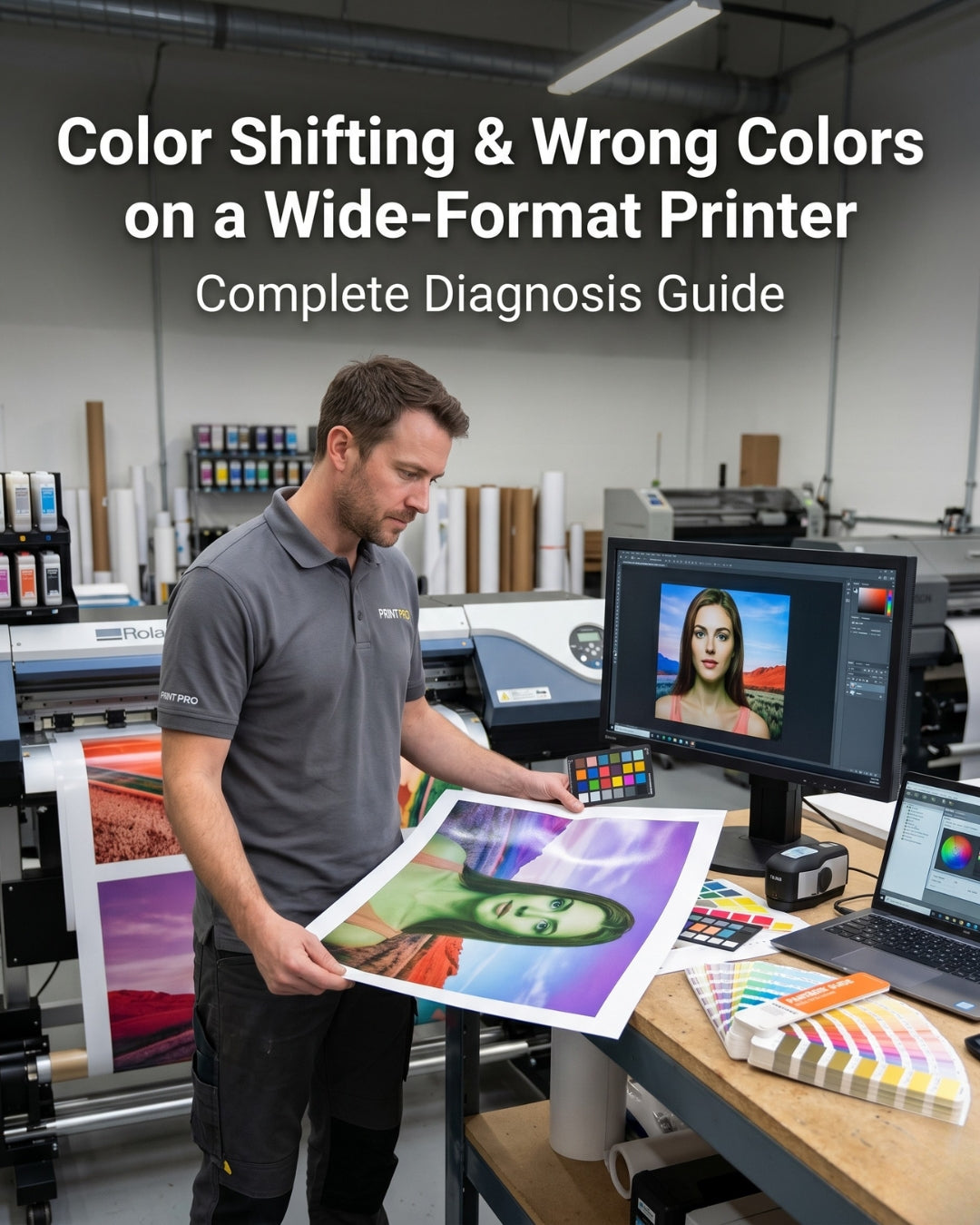
Color shifting is when your printer outputs colors that do not match your file — cyan prints as magenta, colors appear muddy or cross-contaminated, skin tones shift green, or an entire channel drops out and prints in a completely wrong hue. It is one of the most disorienting print quality problems because it looks catastrophic. In most cases, it is not.
The majority of color shifting on wide-format inkjet printers is caused by one of three things: a leaking ink damper allowing cross-channel contamination, a failing data cable misaddressing color channel signals, or an ICC profile or color management setting that has changed or corrupted. All three are fixable. None of them require a new printhead.
This guide covers every cause of color shifting and wrong color output on wide-format printers, how to identify which cause you have, and what to do about each one — in order of likelihood.
Quick answer — what causes color shifting?
Color shifting is caused by: (1) a leaking ink damper allowing one color to contaminate another channel, (2) a failing or incorrectly seated data cable misrouting color channel signals, (3) an incorrect or corrupted ICC profile or color management setting, (4) cross-contaminated ink caused by switching ink types without flushing, or (5) a printhead with damaged internal channel separation. The first three are the most common and are all fixable without replacing the head.
In this guide
- How to identify what type of color problem you have
- Cause 1 — Leaking ink damper (cross-channel contamination)
- Cause 2 — Failing or unseated data cable
- Cause 3 — Wrong ICC profile or color management setting
- Cause 4 — Cross-contaminated ink supply
- Cause 5 — Ink channel loaded in wrong position
- Cause 6 — Printhead internal channel damage
- Color shifting vs. color cast — knowing the difference
- Step-by-step diagnosis checklist
- FAQ
Color shifts start in the ink path — check these parts
- Dampers — all brands
- Head data cables
- Epson i3200 / i1600 / XP600 / 5113 damper
- DTF strong printhead cleaning solution
In stock · Ships same day from Doral, FL on orders before 2 PM EST · Genuine OEM, sealed
How to identify what type of color problem you have
Before diagnosing the cause, identify which type of color problem you are dealing with. The pattern tells you where to look:
| What you see | Likely cause |
|---|---|
| One color printing in the wrong channel (e.g. cyan prints magenta) | Data cable fault or damper cross-contamination |
| Colors muddy or mixed — two colors appearing in the same channel | Leaking damper — ink from one channel entering another |
| Overall color cast across all output (e.g. everything too red or too green) | ICC profile or color management setting issue |
| Colors shifted immediately after changing ink | Ink cross-contamination — old ink mixed with new in the lines |
| Color shift appeared after replacing a data cable or printhead | Cable incorrectly seated or wrong cable installed |
| Colors correct in nozzle check but wrong in actual print output | Software/RIP/ICC profile issue — not a hardware fault |
Key first test: Print a nozzle check pattern. If the colors in the nozzle check are correct (cyan row is cyan, magenta is magenta) but your print output has wrong colors, the hardware is fine — the problem is in your software, RIP, or ICC profile settings. If the colors are wrong on the nozzle check itself, the problem is hardware: either a cable fault or damper contamination.
Cause 1 — Leaking ink damper (cross-channel contamination)
Likelihood: High. Each ink channel has its own dedicated damper. When a damper's internal membrane degrades or develops a pinhole failure, ink can migrate between adjacent channels inside the damper housing — mixing two colors at the source before they even reach the printhead. The result is one channel printing a mixed color, or one channel's color appearing contaminated with another.
How to identify it:
- Nozzle check shows incorrect colors in one or more rows — for example, the cyan row printing purple (cyan contaminated with magenta)
- The color mixing is visible in the damper body itself — you can see two colors in a damper that should contain only one
- The problem is isolated to specific channels rather than affecting all colors equally
- Color shift appeared gradually and worsened over time as the damper degraded further
- Flushing with cleaning solution temporarily improves the issue but it returns
What to do:
- Replace all dampers — not just the one visibly contaminated. When one damper fails, others are at similar age and will fail shortly
- After replacing dampers, run the printer's ink fill or prime cycle to flush the contaminated ink from the lines
- Print a nozzle check to confirm colors are now correctly separated
- Run a short test print with a known color reference file before resuming production
Important: After a damper cross-contamination event, flush the ink lines thoroughly before declaring the problem resolved. Residual contaminated ink remaining in the lines will continue to produce color shifts even after the faulty damper is replaced. Run multiple prime cycles and discard the first few prints.
→ Browse dampers for your printhead model
Cause 2 — Failing or incorrectly seated data cable
Likelihood: High. The data cables (FFC flat flex cables) carry the electronic signals that tell each nozzle row which color channel to fire and when. When a cable is failing, incorrectly seated, or has a damaged connector pin, it can misaddress the color channel signals — telling the cyan nozzle rows to fire with magenta timing, for example. This produces clean-looking output in the wrong colors entirely.
How to identify it:
- Colors are completely swapped — one color printing in another channel's position — rather than mixed or contaminated
- The nozzle check pattern shows colors in wrong positions (e.g. the magenta row prints cyan)
- The problem appeared after a printhead replacement, cable replacement, or maintenance operation where cables were disconnected and reconnected
- Color shift is intermittent — correct on some prints, wrong on others — which suggests a loose or partially failed cable connection
- The shift affects one side or one portion of the print width, not uniformly across the full width
What to do:
- Power off the printer completely before touching any cables
- Inspect all data cable connections at both the printhead end and the carriage board end — look for cables that are not fully seated, are slightly lifted, or have visible damage to the gold contact strip
- Reseat each cable carefully — press firmly until you feel or hear the connector click into place
- Power the printer back on and print a nozzle check
- If reseating does not resolve the issue, replace the data cables — they flex thousands of times per day and fatigue at predictable rates
- Replace all cables as a set, not just the one that appears faulty — they wear at the same rate
For the Epson i3200, the correct cable is a 14-pin FFC, 15mm wide, 0.5mm pitch. The same cable fits the i3200-A1, U1, and E1 variants. Always replace all 4 cables at every head installation.
→ Browse data cables by printhead model
Cause 3 — Wrong ICC profile or color management setting
Likelihood: High — especially if the nozzle check colors look correct. ICC profiles define how your RIP software or print driver converts the colors in your file into ink channel values. If the wrong profile is selected, the profile is corrupted, or color management settings have changed (for example after a software update), the printer receives incorrect channel assignments and outputs the wrong colors — even though all the hardware is working perfectly.
How to identify it:
- The nozzle check pattern shows correct colors in the correct channels — the hardware is functioning normally
- Color shift appeared after a RIP software update, driver update, or change in print settings
- The problem affects all prints uniformly — not just specific channels or areas
- Printing directly from a different application or with color management disabled produces different (potentially correct) colors
- The selected ICC profile does not match the media and ink combination in use
What to do:
- Confirm the correct ICC profile is selected in your RIP software for the current media and ink combination
- Check whether color management is enabled at both the application level and the RIP level — double color management (both enabled simultaneously) causes significant color shifts
- If a software update recently occurred, check whether the update reset any color management settings to defaults
- Try printing with color management completely disabled as a diagnostic step — if colors improve, the issue is definitively in your color management configuration
- Reinstall or re-download the ICC profile for your media if the profile may have corrupted
- Consult your RIP software documentation or support for profile troubleshooting specific to your setup
Cause 4 — Cross-contaminated ink supply
Likelihood: Medium — typically occurs after an ink brand change. When switching ink brands or ink types without properly flushing the ink supply system, residual ink from the old supply mixes with the new ink in the dampers, ink lines, and printhead channels. Different ink formulations have different chemical compositions — when they mix, the resulting color can be significantly different from either ink alone.
How to identify it:
- Color shift appeared immediately or shortly after changing ink cartridges or bulk ink supply
- Colors gradually normalize as more ink is consumed and the old ink is purged from the system
- The shift is most pronounced immediately after the ink change and improves over subsequent print jobs
- Multiple channels are affected, not just one
What to do:
- When switching ink brands, always flush the ink system with an approved cleaning solution before introducing the new ink — do not simply load the new ink over the old
- Run multiple prime or fill cycles to purge the mixed ink from the lines
- Replace the ink dampers when switching ink brands — contaminated dampers cannot be fully flushed
- Print a series of test prints and monitor whether colors stabilize as the new ink fully populates the system
- If colors do not stabilize after thorough flushing and multiple prime cycles, the inks may be fundamentally incompatible — consult your new ink supplier
Cause 5 — Ink channel loaded in wrong position
Likelihood: Low — but easy to check. On printers with individually replaceable ink cartridges or bulk ink bottles, it is possible to load an ink color into the wrong channel position — loading cyan ink into the magenta slot, for example. This is a simple human error but produces dramatic color shifting that looks alarming.
How to identify it:
- Color shift appeared immediately after loading new ink cartridges or refilling bulk ink
- The nozzle check shows clearly wrong colors in specific channels
- The shift matches a simple swap — cyan and magenta reversed, for example
What to do:
- Check every ink channel — confirm that each ink color is loaded into the correct slot as labeled on the printer
- If any ink is in the wrong position, remove it and load it correctly
- Run a fill or prime cycle to flush the misloaded ink from the lines before continuing
- Replace the dampers on any channels where wrong ink was loaded — the contamination may persist in the damper even after correcting the ink positions
Cause 6 — Printhead internal channel damage
Likelihood: Low — only after ruling out all other causes. In rare cases, the internal channel separation within the printhead itself can fail — allowing ink to migrate between channels inside the head. This can also occur from chemical incompatibility where an aggressive cleaning solution or incompatible ink has damaged the internal seals. This is a hardware failure that requires head replacement.
How to identify it:
- All external dampers, cables, and ink supplies have been checked and confirmed correct
- Color contamination persists even after replacing all dampers and flushing the system
- The contamination pattern is visible on the nozzle check and cannot be cleared with any maintenance procedure
- The printer recently had an aggressive cleaning solution applied that was not approved for that printhead model
If you suspect internal head damage, contact us before ordering a replacement. Email a photo of your nozzle check along with a description of what maintenance has been performed — we will help confirm whether replacement is warranted.
Color shifting vs. color cast — knowing the difference
These are two distinct problems that are often confused:
| Color shifting | Color cast | |
|---|---|---|
| What it looks like | A color printing in the wrong channel entirely — cyan appearing where magenta should be | All colors skewed in one direction — everything too warm, too cool, or too saturated |
| Primary cause | Hardware — cable fault or damper contamination | Software — ICC profile, color management, or calibration |
| Nozzle check | Wrong colors visible in the check pattern itself | Correct colors in nozzle check but wrong in print output |
| Fix | Replace dampers and/or cables | Correct ICC profile or recalibrate color management |
Step-by-step diagnosis checklist
Step 1 — Print a nozzle check and look at the colors
Colors wrong on the nozzle check → hardware fault (go to Step 2).
Colors correct on nozzle check but wrong in print output → software/ICC profile issue (go to Step 5).
Step 2 — Inspect dampers for cross-contamination
Look for two colors visible in any single damper body.
If found → replace all dampers, flush lines, recheck.
If dampers look clean → go to Step 3.
Step 3 — Check data cable seating
Power off, reseat all data cables, power on, recheck nozzle check.
If colors now correct → cable was unseated.
If still wrong → replace all data cables.
Step 4 — Verify ink channel positions
Confirm every ink color is in the correct slot as labeled.
If any are swapped → correct positions, flush, replace dampers on affected channels.
Step 5 — Check ICC profile and color management settings
Confirm correct profile selected for current media and ink.
Disable color management and test print.
If colors improve → reconfigure color management settings.
Step 6 — All above checked, problem persists
Contact us with a photo of your nozzle check before ordering any parts. info@digiprint-usa.com
Parts that fix color shifting
Confirmed it's the head? Shop printheads by brand
- Epson printheads — DX4, DX5, DX7, i3200, i1600, XP600
- Roland printheads — DX4, DX6, DX7
- Ricoh printheads — Gen4, Gen5, Gen6, GH2220
- DTF printheads — i3200, i1600, XP600
In stock · Ships same day from Doral, FL on orders before 2 PM EST · Genuine OEM, sealed
Frequently asked questions
Why is my wide-format printer printing the wrong colors?
Wrong colors on a wide-format printer are most commonly caused by a leaking ink damper allowing cross-channel contamination, a failing or unseated data cable misrouting color signals, or an incorrect ICC profile in your RIP software. Print a nozzle check first — if the colors are wrong on the check pattern itself, the cause is hardware. If the check pattern looks correct but print output is wrong, the cause is software.
Why is cyan printing as magenta on my printer?
Cyan printing as magenta is almost always caused by either a data cable fault misaddressing the color channel signals, or a leaking damper allowing magenta ink to contaminate the cyan channel. Power off the printer, reseat all data cables, and recheck. If the problem persists, replace the ink dampers on both affected channels and flush the ink lines.
Can a bad ICC profile cause color shifting?
Yes — an incorrect or corrupted ICC profile causes color cast across all output, which can look like color shifting. The key distinction: if colors are correct on the nozzle check pattern but wrong in print output, the cause is in your color management settings, not the hardware. Try printing with color management disabled as a diagnostic step — if colors improve, reconfigure your ICC profile settings.
Will replacing the printhead fix color shifting?
Rarely. Color shifting is almost always caused by something external to the printhead — a failing damper, a cable fault, or a software setting. A new printhead on the same failing dampers and cables will reproduce the same color problems. Always diagnose and fix the root cause before considering a head replacement.
How do I know if my ink damper is causing color contamination?
Inspect the damper body visually — a contaminated damper will show two distinct colors mixed inside the clear or semi-transparent housing. The nozzle check will also show an incorrect color in the affected channel. Replacing all dampers and running a thorough flush cycle resolves damper-based color contamination in the vast majority of cases.
Not sure what is causing the color problem? Send us a nozzle check photo.
Digiprint USA has been supplying OEM printheads and spare parts to print shops across the USA and Latin America since 2009. Email us a photo of your nozzle check and a description of the color shift you are seeing — we will help identify the cause before you order any parts.
Email info@digiprint-usa.com · Call +1 (773) 451-5110 · Same-day shipping before 2 PM EST from Doral, FL
Browse Spare Parts →


Leave a comment
This site is protected by hCaptcha and the hCaptcha Privacy Policy and Terms of Service apply.