
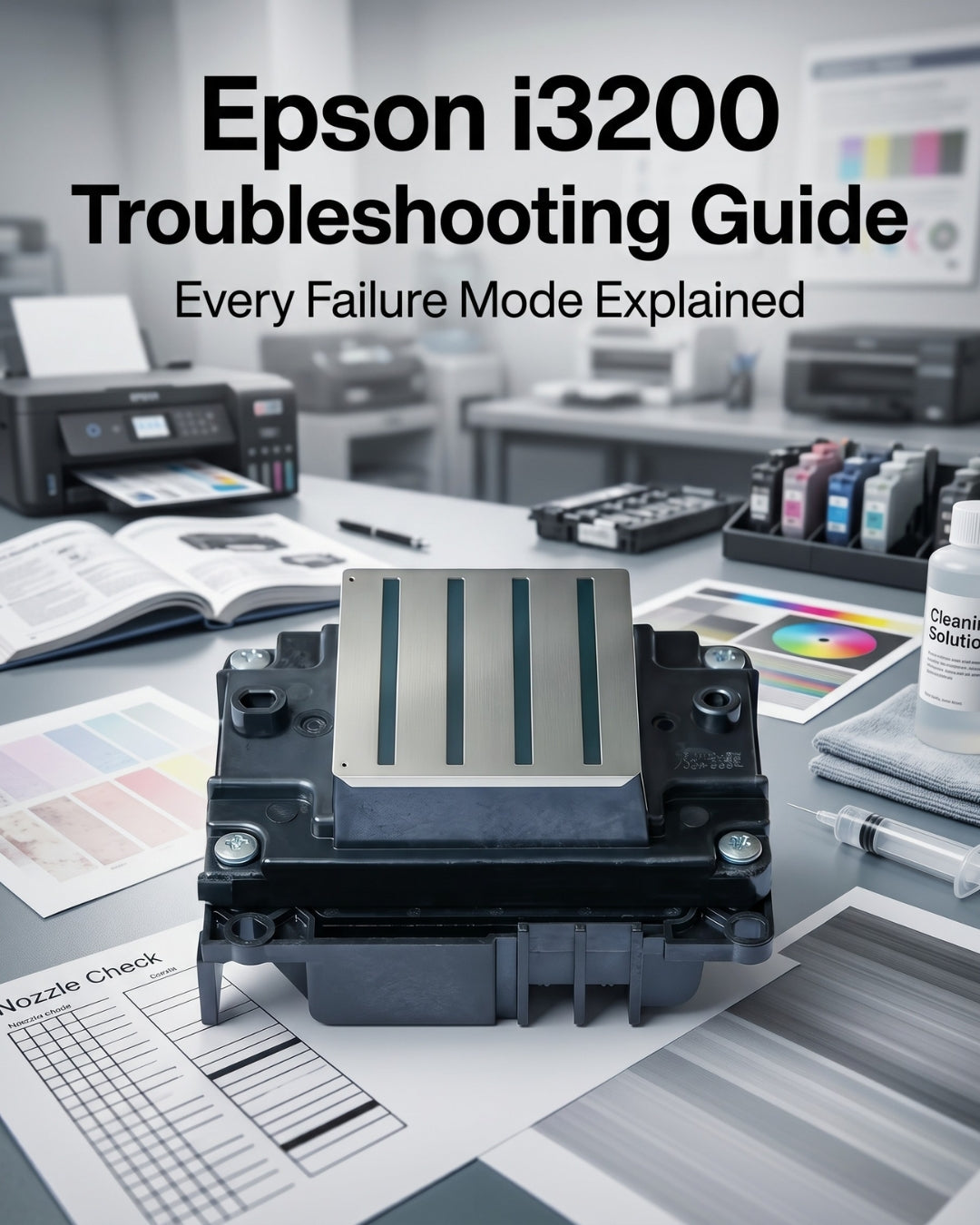
The Epson i3200-A1 is the most widely used printhead in high-production DTF printing, with 3,200 nozzles (8 rows × 400), native 600 dpi resolution, and a typical lifespan of 4–12 months depending on application — DTF averages 4–8 months, sublimation and UV water-based applications average 8–12 months. When banding, missing nozzles, ink starvation, or color errors appear on an i3200, the cause is almost always in the ink delivery system or maintenance accessories rather than the head itself: failing dampers cause single-channel dropout and starvation, a degraded capping station causes overnight nozzle drying, and a fatigued 14-pin FFC data cable — the most commonly overlooked i3200-specific fault — causes color channel errors and wrong colors in output. Always replace all four 14-pin cables as a complete set at every head installation, and replace i3200 dampers proactively every 3–4 months in high-volume DTF production. A replacement i3200-A1 costs $997 at Digiprint USA and ships same day from Doral, FL.
i3200-A1 key specifications — relevant to troubleshooting
In this guide
- Banding on i3200 prints
- Missing nozzles on i3200 nozzle check
- Ink starvation — fading across the swath
- Color shifting — wrong colors in output
- 14-pin cable fault — the i3200-specific cause of color channel errors
- i3200 not recognised after installation
- Nozzle check clean but print quality still poor
- i3200 lifespan — when to accept the head has reached end of service life
- What to always replace with the i3200
1. Banding on i3200 prints
Horizontal banding on the i3200 is almost always a damper or clogged nozzle issue — not the head itself. The i3200's 3,200-nozzle architecture means partial blockages are more noticeable than on lower nozzle-count heads like the XP600, because individual blocked nozzle rows represent a larger proportion of total output quality.
Most likely causes (in order):
- Partially clogged nozzles — run 1–3 cleaning cycles and recheck nozzle pattern
- Failing ink damper on affected channel — replace all dampers if cleaning cycles provide only temporary relief
- Worn wiper blade leaving residue on the nozzle plate — inspect and replace
- Degraded capping station — banding worst at start of job, improving as job progresses
- Dirty encoder strip — banding is irregular in spacing, not matching swath width precisely
→ Full diagnosis: Banding & Horizontal Lines — Complete Guide
2. Missing nozzles on i3200 nozzle check
Print three nozzle checks in sequence without cleaning between them. This is the most important diagnostic step for the i3200:
- Missing nozzles in different positions each check — air in ink lines. The i3200's damper is the source. Replace all dampers and run a prime cycle.
- Missing nozzles in consistent positions — dried ink blockage. Run 1–3 cleaning cycles.
- Same rows permanently absent after 3 cycles + new dampers — permanent nozzle damage. Contact us before ordering a replacement.
→ Full diagnosis: Missing Nozzles — How to Diagnose and Fix
3. Ink starvation — fading across the swath
The i3200-A1 fires at up to 43.2 kHz in binary mode — a significantly higher demand rate than the XP600. This means damper degradation shows up as starvation earlier and more dramatically on the i3200 than on lower-speed heads.
Diagnosis pattern for i3200 starvation:
- Output starts with correct density then fades progressively toward the end of each swath
- A clean nozzle check does not rule out starvation — the check fires at low demand rate. Always test with a full-width production print at production speed
- Starvation on specific channels → damper on those channels
- Starvation on all channels equally → ink filter or global supply issue
i3200-specific note: In high-volume DTF production running full days, i3200 dampers should be replaced every 3–4 months proactively — not when starvation symptoms appear. The i3200's high firing rate accelerates damper wear compared to lower-speed heads.
→ Full diagnosis: Ink Starvation — Causes and Fix
4. Color shifting — wrong colors in output
Color channel errors on the i3200 have two hardware causes specific to this head's architecture:
- Damper cross-contamination — ink from one channel migrating into another through a failing damper membrane. Look for mixed colors in the damper body. Replace all dampers and flush lines.
- 14-pin cable fault — see Section 5 below. This is the i3200-specific cause of color channel errors and the most commonly overlooked.
→ Full diagnosis: Color Shifting & Wrong Colors — Complete Guide
5. 14-pin cable fault — the i3200-specific color channel issue
This is the most commonly overlooked cause of color errors on the i3200. The head uses four 14-pin FFC data cables — one per nozzle row pair. These cables flex thousands of times per day as the carriage moves. They fatigue at a predictable rate and their failure produces a distinctive set of symptoms:
- One color channel printing in the wrong position — or the wrong color entirely
- Color errors that are intermittent — correct on some passes, wrong on others — indicating a cable that is failing but not yet fully broken
- Color errors that appeared after a head replacement, maintenance operation, or cable replacement where cables were disconnected and reconnected
- Errors affecting only part of the print width — one side correct, the other shifted
Fix:
- Power off completely
- Reseat all four 14-pin cables at both the head end and carriage board end — press firmly until the connector clicks
- Power on and retest
- If color errors persist, replace all four cables as a set — never replace just one cable on the i3200
Replace all 4 cables at once. The four 14-pin cables on the i3200 all undergo the same flex stress and wear at the same rate. Replacing one and leaving three old cables guarantees the remaining cables will fail within weeks. Always replace as a full set — at every head installation and whenever any cable shows color errors.
→ Browse 14-pin i3200 data cables
6. i3200 not recognised after installation
If the printer does not recognise the i3200 after installation or shows an error, work through these in order:
- Cable seating — power off, remove and firmly reseat all four 14-pin cables. An unseated cable is the most common cause of post-installation non-recognition.
- Head seating — confirm the printhead is fully and correctly seated in the carriage mount. An improperly seated head will not make full electrical contact.
- Head variant mismatch — confirm the installed head matches your printer's requirement. A1 (water-based), U1 (UV), and E1 (eco-solvent) variants share the same physical form factor but the printer firmware checks the head's chip signature. Installing a U1 in a machine expecting an A1 produces a recognition error.
- Locked head — confirm the head is the unlocked variant. Locked i3200 heads are configured for specific Epson printers and will not function in generic DTF machines.
- Carriage board issue — if all of the above have been confirmed and the head is still not recognised, the carriage board may have been damaged during installation. Contact us.
Contact us at info@digiprint-usa.com before returning any head — all i3200 heads at Digiprint USA are unlocked and verified before shipping.
7. Nozzle check clean but print quality still poor
This is a common situation on the i3200 and almost always has a software or settings cause:
- Bidirectional alignment — if the printer runs bidirectional printing, the alignment between left-to-right and right-to-left passes must be calibrated. Misalignment produces ghosting and apparent banding even with perfect nozzles. Run your printer's bidirectional calibration routine.
- Ink density setting too high — DTF inks used at too high a density cause over-saturation artifacts. Check your RIP software's ink volume settings for the current media profile.
- Pass count too low — a reduced pass count (e.g. 4-pass instead of 8-pass) can reveal nozzle-to-nozzle variation that higher pass counts mask. Increase pass count if quality is the priority.
- ICC profile mismatch — confirm the correct profile is selected for your current DTF ink brand and film combination.
If software adjustments do not resolve the quality issue, describe the specific output problem in detail and send a photo to info@digiprint-usa.com — we will help diagnose before you replace any parts.
8. i3200 lifespan — when to accept end of service life
Based on reorder data from Digiprint USA customers, i3200-A1 lifespan in DTF production ranges from 4 to 12 months. The wide range reflects maintenance quality — shops following the maintenance schedule in this series get 10–12 months; shops with poor maintenance habits get 3–4 months.
The i3200 has genuinely reached end of service life when:
- All maintenance accessories have been replaced (dampers, cables, wiper, capping station)
- 3+ cleaning cycles produce zero improvement in the nozzle check
- The same nozzle rows are permanently absent on every check
- The printer has accumulated print volume consistent with the expected service life for the production intensity
- No recent head strike or dry-firing event explains the sudden failure
Contact us with a nozzle check photo before ordering. We confirm end-of-life diagnosis remotely and ensure you order the correct variant (A1, A1 HD, U1, or E1) and accessories.
What to always replace with the i3200
Frequently asked questions
How long does an Epson i3200-A1 last in DTF production?
Based on Digiprint USA customer reorder data, the i3200-A1 lasts 4–12 months in DTF production. Shops following a structured maintenance schedule — daily nozzle checks, proactive damper replacement every 3–4 months, accessories replaced at every head installation — consistently reach 10–12 months. Shops with poor maintenance habits see 3–5 months.
What data cable does the Epson i3200-A1 use?
The i3200-A1 uses four 14-pin FFC data cables, 15mm wide, 0.5mm pitch. All four must be replaced as a set at every head installation and whenever any cable causes color channel errors. The same cable fits the i3200-A1, U1, and E1 variants.
Why is my i3200 producing color errors after replacement?
Color errors immediately after an i3200 replacement are almost always caused by a cable that was not fully reseated during installation. Power off, reseat all four 14-pin cables firmly at both ends, power on and retest. If color errors persist, replace all four cables as a set — old cables from the previous head are not suitable for reuse with a new head.
What is the difference between the i3200-A1 and i3200-A1 HD?
The i3200-A1 HD (High Density) variant is optimised for high-density DTF ink formulations with thicker pigment loads. If your DTF ink supplier specifies an HD head, use the A1 HD. If they specify standard A1, use the standard A1. Running high-density ink through a standard A1 can cause clogging. Contact us if you are unsure which variant your ink requires.
How do I confirm my i3200 needs replacing vs just needing maintenance?
Email us a photo of your nozzle check along with what maintenance you have already performed. We confirm remotely whether the head needs replacement or whether the problem is still in the maintenance accessories. This takes 5 minutes and can save you $997.
Need a genuine i3200-A1? Ships same day.
Every i3200-A1 at Digiprint USA is 100% genuine OEM — sealed in original Epson packaging, unlocked for DTF machines, ships same day from Doral, FL on orders before 2 PM EST. Contact us before ordering to confirm the correct variant and accessories for your machine.
info@digiprint-usa.com · +1 (773) 451-5110
Buy Epson i3200-A1 — In Stock →Related guides



Leave a comment
This site is protected by hCaptcha and the hCaptcha Privacy Policy and Terms of Service apply.